
Building Your Own Geometry Dash in Scratch: A Jumpstart Guide
How to Make a Geometry Dash Scratch Game?
Creating your own version of Geometry Dash in Scratch is an exciting way to learn game development while having fun. Inspired by the popular game Geometry Dash, this project helps beginners understand programming logic, animation, and interactive design.
Scratch, developed by MIT Media Lab, is a visual programming platform where you can create games using drag-and-drop blocks. Even if you have no prior coding experience, Scratch makes it easy to bring your ideas to life.
In this guide, you will learn step-by-step how to design and build a simple Geometry Dash-style game, including player movement, obstacles, scoring, and testing.
Getting Started with Scratch
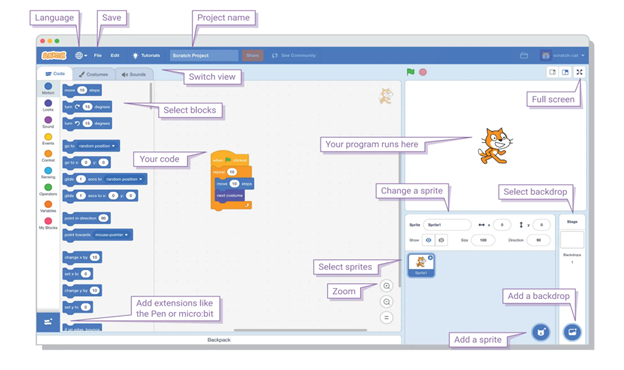
Before building your game, you need to set up your environment in Scratch.
First, go to the Scratch website and create a free account. Once logged in, click on “Create” to open the Scratch editor. This is your workspace where all coding, design, and animation will happen.
The Scratch interface has three main parts:
- Stage – where your game runs
- Sprites – characters or objects in your game
- Code Blocks – used to program behavior
Start by choosing or designing a sprite that will act as your player. In a Geometry Dash-style game, this is usually a square or cube. You can either draw your own sprite or select one from Scratch’s library.
Understanding the basics of Scratch—such as motion blocks, control blocks, and event blocks—is essential before moving forward. These blocks will be used to create movement, detect collisions, and control game flow.
Designing the Game Layout
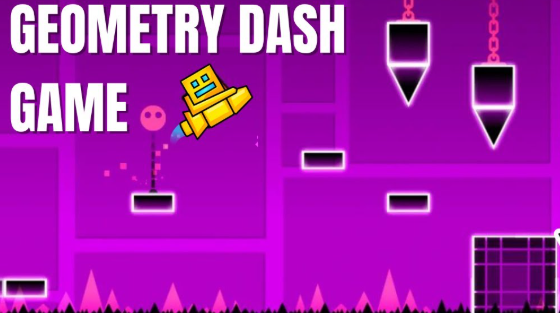
The layout of your game defines how it looks and feels to the player. A good design makes the game visually appealing and easy to play.
Start by creating a background that represents the game environment. In Geometry Dash-style games, this is often a simple horizontal platform with moving obstacles. You can use Scratch’s backdrop library or design your own using the paint editor.
Next, create obstacles such as spikes or blocks. These are the main challenges the player must avoid. Position them across the stage in a sequence to create a level. You can duplicate sprites to create multiple obstacles quickly.
You should also design a ground platform where the player moves. This helps simulate the running effect seen in Geometry Dash. Keep the design simple initially, then enhance it with colors and animations later.
A well-planned layout ensures smooth gameplay and keeps players engaged. Try to balance difficulty so the game is challenging but not frustrating.
Programming the Game Mechanics
This is the most important part of building your game. Here, you will use Scratch blocks to bring your game to life.
1. Player Movement
Program your player sprite to move forward continuously. Use a loop to make the character move automatically across the screen. This creates the core gameplay of a running game.
2. Jump Mechanism
Add a jump feature using key press events (such as the spacebar). When the key is pressed, the player should move upward and then fall back down due to gravity. You can simulate gravity by gradually decreasing the upward motion.
3. Gravity Effect
Gravity makes the game realistic. Without it, the player would float. Use a variable to control vertical speed and continuously reduce it to bring the player back down.
4. Collision Detection
Detect when the player touches an obstacle. If a collision occurs, the game should end or restart. Scratch provides “touching” blocks to easily implement this feature.
5. Scrolling Effect
To simulate movement, instead of moving the player forward, move the obstacles backward. This creates the illusion that the player is progressing through the level.
These mechanics form the backbone of your game and define how it behaves.
Adding Game Features and Testing
Once the basic game is working, you can enhance it with additional features to make it more engaging.
1. Scoring System
Add a score that increases as the player survives longer. This gives players a goal and makes the game competitive. Use variables to track and display the score on the screen.
2. Sound Effects
Include sound effects for jumping, collisions, and background music. This makes the game more immersive and enjoyable.
3. Levels and Difficulty
Create multiple levels by increasing the speed of obstacles or adding more complex patterns. This keeps the game interesting and challenging over time.
4. Game Over Screen
Design a game over screen that appears when the player hits an obstacle. You can add a restart button to allow players to try again easily.
5. Testing and Debugging
Testing is crucial to ensure your game works smoothly. Play your game multiple times to identify bugs or issues. Check if collisions are accurate, jumps feel natural, and the game runs without errors.
Ask friends or classmates to test your game and provide feedback. This helps you improve gameplay and fix problems you might have missed.
Conclusion
Building your own Geometry Dash-style game in Scratch is a great way to learn programming, creativity, and problem-solving. It introduces you to important game development concepts such as movement, collision detection, and user interaction.
By starting with simple designs and gradually adding features, you can create a fun and interactive game even as a beginner. Scratch makes this process easy and enjoyable, allowing you to focus on creativity rather than complex coding.
As you gain confidence, you can expand your game with advanced features like animations, custom levels, and leaderboards. This project is not just about making a game—it is a step toward becoming a skilled developer.