How to Create a Simple Jumping Game Using Scratch Programming
Scratch is a powerful visual programming platform that makes learning coding engaging and accessible for everyone. Whether you are a beginner taking your first steps into programming or a student interested in game development, creating a jumping game on Scratch is a great way to learn core concepts while having fun. In this Scratch game tutorial, we will walk through the process of designing and building a simple jumping game using Scratch programming basics.
This guide is especially suitable for Scratch coding for kids, but it is equally useful for anyone who wants a hands-on introduction to game development.

Introduction to Scratch Programming
Scratch is a free, block-based programming language developed by the MIT Media Lab. It allows users to create games, animations, and interactive stories using colourful drag-and-drop blocks instead of complex text-based code. Because of this visual approach, Scratch helps learners understand logic, sequencing, and problem-solving without worrying about syntax errors.
Millions of users worldwide use Scratch to build projects and share them with the global Scratch community. This strong community support makes learning faster and more enjoyable, especially for beginners.
Understanding the Jumping Game Concept
A jumping game on Scratch typically follows a simple idea: a player-controlled character jumps across platforms while avoiding falling off the screen. Platforms may move or appear continuously, and the player must time jumps carefully to survive. As time passes, the game can become more challenging by increasing speed or adding obstacles.
This type of project is often classified as a platformer game, Scratch design, as the gameplay revolves around movement, gravity, and platform interaction.
Creating a New Scratch Project
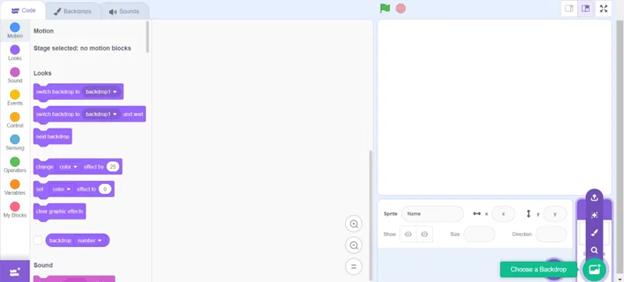
To begin, visit the Scratch website and click on the Create button to open the editor. Start with a blank project or choose a template if you prefer a starting point.
Rename your project with a clear and meaningful title. Writing a short description helps others understand what your game is about when you share it later.
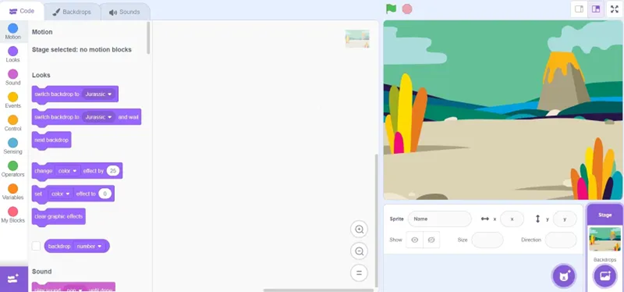
Next, choose a backdrop for your game. A simple background works best for beginners, allowing players to focus on the character and platforms.
Exploring Scratch Programming Basics
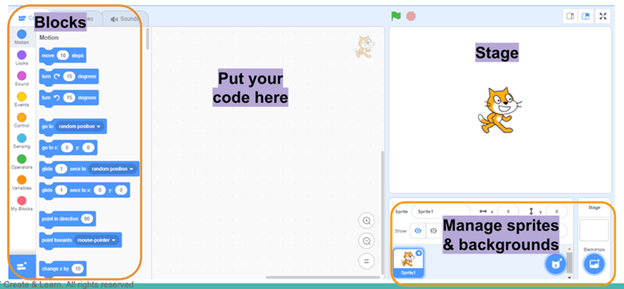
Before diving into coding, it is important to understand the different types of Scratch blocks. Blocks are grouped into categories such as Motion, Looks, Sound, Events, Control, Sensing, Operators, and Variables. Each block performs a specific task, such as moving a sprite, playing a sound, or checking a condition.
By snapping blocks together, you create scripts that define how sprites behave. This block-based approach is at the heart of Scratch programming basics and helps learners visualise program flow easily.
Designing the Game Environment
The game environment includes the backdrop, platforms, and any obstacles. Create a platform sprite that the player can jump on. To make the game more interesting, design multiple platform costumes with different sizes.
Instead of adding many platform sprites, use clones. Cloning allows one sprite to create multiple copies of itself during gameplay. This technique keeps the project organised and improves performance.
Each platform clone should:
- Appear at a random horizontal position
- Start at the top of the screen
- Move downward
- Delete itself once it leaves the screen
This creates a continuous flow of platforms, giving the illusion of an endless level.
Creating the Player Character
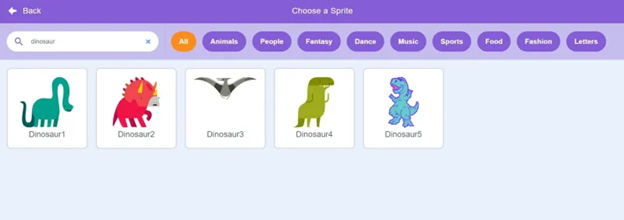
Choose a sprite to act as the player character. This sprite should be able to move left, move right, jump, and fall. Control left and right movement using keyboard inputs and motion blocks.
To prevent the sprite from rotating upside down, set its rotation style to left-right. This keeps movement clean and visually appealing.
Implementing the Jump Mechanic
Jumping is the game’s core mechanic. To make jumping realistic, the character should only jump when it is touching a platform.
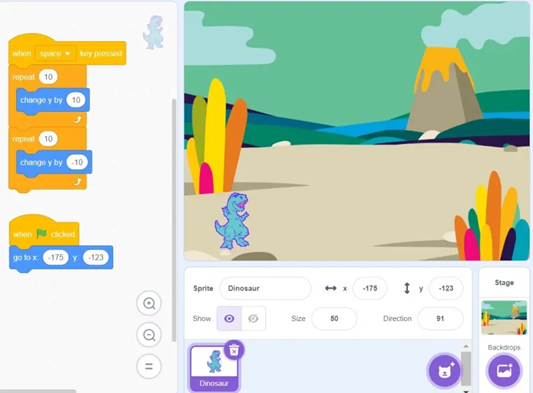
This can be implemented using conditional blocks:
- First, check if the sprite is touching a platform
- Then, check if the jump key is pressed
If both conditions are true, increase the Y position gradually inside a repeat loop. This creates a smooth upward motion rather than a sudden jump.
Adding Gravity and Falling
Gravity makes the game feel natural. When the sprite is not touching a platform, it should fall downward automatically.
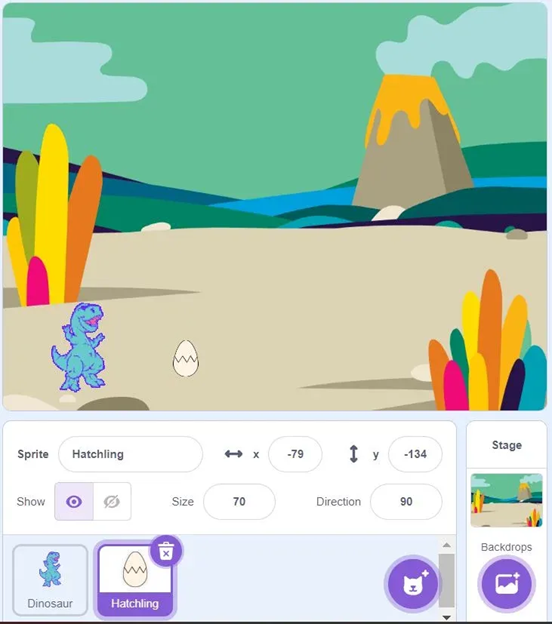
Using an if-else block:
- If touching a platform, allow jumping
- Otherwise, decrease the Y position continuously
Gravity introduces timing and skill into the gameplay, which is essential for any platformer game Scratch project.
Adding Obstacles and Challenges
To make the game more engaging, add obstacles such as moving platforms, gaps, or hazards. These elements challenge the player and require precise movement.
Collision detection using sensing blocks allows the game to respond when the player hits an obstacle. This could result in losing a life, restarting the level, or ending the game.
Creating a Score System
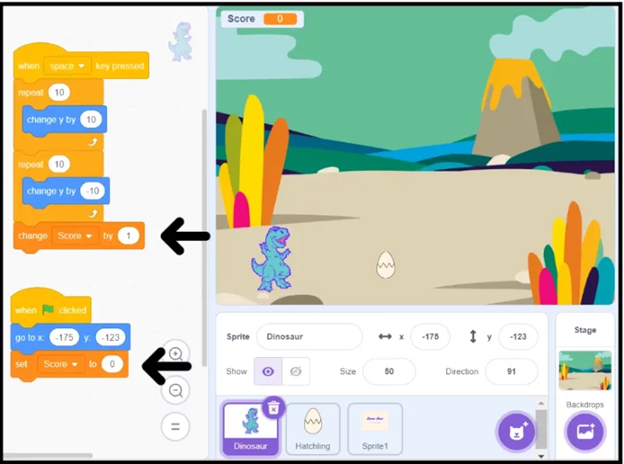
A score system motivates players to improve. Create a variable called Score and increase it over time or when the player reaches certain milestones.
Variables are a key part of Scratch programming basics and help track game progress. Display the score on the screen so players can see their performance in real time.
Game Over Logic
Every game needs a clear ending condition. When the player falls below the bottom of the screen, the game should stop.
Add a condition that checks the sprite’s Y position. If it drops below a certain value, stop all scripts and trigger a game over event. Adding a short delay at the start of the game prevents immediate game-over bugs when restarting.
Enhancing the Game with Sound and Animation
Sound effects and animations significantly improve the player experience. Add jump sounds, background music, and game over effects using the sound blocks.
Animations can be created by switching costumes during jumps. Broadcasting messages allows animations to run without interfering with movement logic.
Testing and Debugging
Testing is a crucial part of game development. Play the game multiple times and look for issues such as unexpected behaviour, glitches, or difficulty imbalances.
Debugging involves checking scripts step by step and adjusting values until the game behaves as intended. Even small changes can greatly improve gameplay.
Sharing and Publishing the Game
Once your game is complete, share it using the Share button on the Scratch platform. Add a clear title, description, and relevant tags so others can find and play your game.
Sharing your project allows you to receive feedback from the Scratch community, which is valuable for learning and improvement.
Conclusion
Creating a simple jumping game using Scratch programming is an excellent way to learn game design and coding fundamentals. This Scratch game tutorial demonstrates how concepts like motion, gravity, variables, cloning, and events work together to form an interactive experience.
For beginners and young learners, especially those exploring Scratch coding for kids, this project builds confidence and encourages creativity. With practice and experimentation, you can extend this jumping game with new levels, power-ups, and mechanics, turning a simple idea into a polished and exciting game.
Happy coding and keep exploring the world of Scratch.