
How to Make an Animation with Visual Coding Tools
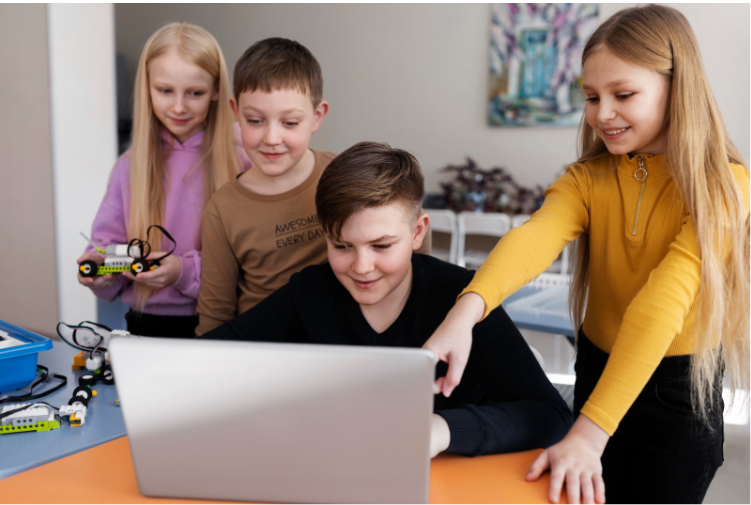
Animation is no longer limited to professionals using complex software. With the rise of visual coding tools and design platforms, anyone can bring ideas to life through simple drag-and-drop interfaces. Whether you are a student, beginner, or someone exploring creativity, learning how to make an animation has become more accessible than ever.
This guide walks through the process step by step, from developing your idea to exporting your final animation. It combines visual coding tools and platforms like Canva to give you a complete understanding of how to create animations simply and engagingly.
Develop Your Idea

Every animation begins with an idea. Before opening any tool, it is important to think about what you want to create. It could be a short story, an educational concept, a simple character movement, or even a promotional clip.
Start by asking a few basic questions. What is the purpose of your animation? Who is your audience? What message do you want to convey? These questions help shape your direction and make the process smoother.
You do not need a complex storyline. Even a simple concept like a bouncing ball, a walking character, or a short conversation between two objects can be a great starting point. The key is clarity. A clear idea ensures that your animation stays focused and easy to execute.
Sketching your idea on paper or writing a small sequence of events can also help. This acts like a blueprint and gives you a roadmap to follow while creating your animation.
Set Up Your Stage
Once your idea is ready, the next step is to set up your stage. In visual coding tools like Scratch or similar platforms, the stage is where your animation takes place. It acts as the background or environment for your characters and actions.
Choose a background that matches your idea. If your animation is about nature, you might select a forest or sky background. If it is a classroom concept, you can set up a simple indoor scene.
The stage should support your story, not distract from it. Keep it simple and relevant. Too many elements in the background can make your animation look cluttered and confusing.
You can also customise the stage by adding colours, shapes, or images. This helps create a unique look and makes your animation more engaging.
Position Your Sprites
Sprites are the characters or objects in your animation. These could be people, animals, shapes, or anything that moves or interacts on the stage.
After setting up the stage, you need to position your sprites. Place them in the correct starting location based on your idea. For example, if your character is supposed to walk across the screen, position it at one side of the stage.
You can use pre-designed sprites available in the tool or create your own. Many platforms allow you to draw or upload custom characters, giving you more creative control.
Proper positioning is important because it defines how your animation begins. It sets the initial state from which all movements and actions will occur.
Add Code Blocks
This is where the magic happens. Visual coding tools use code blocks that you can drag and drop to create animations. Instead of writing complex code, you simply connect blocks that represent actions.
Start with basic movements. For example, you can add blocks that make a sprite move forward, turn, or change position. Then, you can add timing elements like delays to control when actions happen.
You can also include interactions. A sprite can respond to clicks, keyboard inputs, or other sprites. This makes your animation more dynamic and engaging.
Loops and conditions are useful for repeating actions or creating logic. For example, you can make a character keep moving until it reaches a certain point, or change direction when it touches an edge.
The key is to experiment. Try different combinations of blocks and observe what happens. This trial-and-error process helps you understand how animations work and improves your creativity.
As you build your animation, keep your original idea in mind. Make sure each action contributes to the overall story or concept.
Using Visual Design Platforms (Canva)
While visual coding tools are great for interactive animations, design platforms like Canva offer a different approach. They focus more on visual storytelling and are ideal for creating presentations, social media animations, or short clips.
Using Canva is simple and intuitive, making it a good option for beginners who want to create visually appealing animations without coding.
Create a Design
Start by creating a new design in Canva. Choose a format that suits your purpose, such as a video, presentation, or social media post.
Once your canvas is ready, you can begin designing your scene. Add backgrounds, text, images, and shapes that align with your idea.
Canva provides a wide range of templates, which can save time and give you inspiration. You can customise these templates to match your concept.
Keep your design clean and focused. Avoid adding too many elements at once. A simple and well-organised layout makes your animation more effective.
Add Elements
Elements are the building blocks of your design. These include icons, illustrations, photos, and text.
Choose elements that support your message. For example, if you are explaining a concept, use icons and labels to make it clear. If you are telling a story, use characters and scenes that match the narrative.
Position the elements carefully on the canvas. Think about how they will appear and move during the animation.
Consistency is important. Try to use a similar style for all elements to maintain a cohesive look.
Animate the Elements
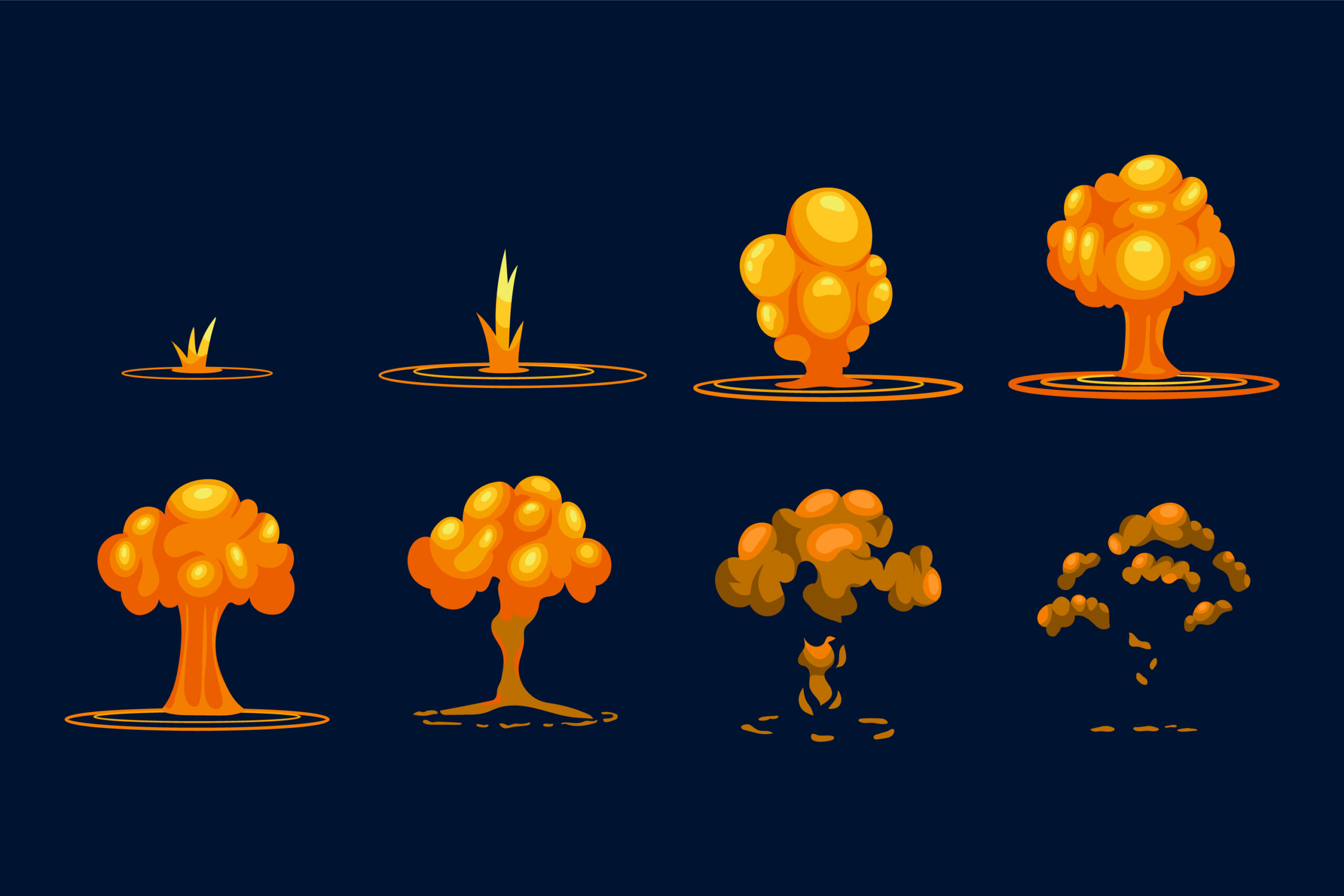
Once your design is ready, you can bring it to life using Canva’s animation features. Select an element and apply an animation effect.
You can choose from options like fade, slide, bounce, or zoom. Each effect changes how the element appears or moves on the screen.
Timing plays a crucial role here. Adjust the duration and order of animations to create a smooth flow. For example, text can appear after an image, or elements can move in sequence to tell a story.
You can also animate entire pages to create transitions between scenes. This adds a professional touch to your animation.
The goal is to enhance your message, not overwhelm the viewer. Use animations thoughtfully and avoid excessive effects.
Export
After completing your animation, the final step is to export it. Most platforms allow you to download your work in different formats.
In visual coding tools, you can often share your project directly or export it as a video. In Canva, you can download your animation as an MP4 video or GIF.
Choose the format based on where you plan to use the animation. Videos are suitable for presentations and social media, while GIFs are great for quick sharing.
Before exporting, review your animation. Check for any errors, timing issues, or missing elements. Making small adjustments at this stage can improve the final output.
Bringing It All Together
Creating an animation with visual coding tools and design platforms is a step-by-step process that combines creativity and logic. It starts with a simple idea and gradually builds into a complete visual experience.
By developing your idea, setting up your stage, positioning your sprites, and adding code blocks, you can create interactive animations. At the same time, using platforms like Canva allows you to design visually appealing animations with ease.
The best part is that you do not need advanced technical skills to get started. With practice and experimentation, you can create animations that are both engaging and meaningful.
Conclusion
Animation is a powerful way to communicate ideas, tell stories, and express creativity. With the help of visual coding tools and platforms like Canva, the process has become more accessible to everyone.
The key is to start simple, stay consistent, and keep experimenting. Over time, you will develop your own style and improve your skills.
Whether you are creating for learning, fun, or sharing content, animation offers endless possibilities. All it takes is an idea and the willingness to bring it to life.